You can remove one person’s voice from a video by isolating the voice you want to keep. Upload the video to Crele’s free Isolate a Speaker tool, give it a few clean seconds of the voice to keep, and hear the result with everyone else removed. It runs in the browser, nothing to install. To download the result, make a free account.
Keep only one voice in a recording: try it without uploading
Ten seconds of two people on one microphone. We marked three seconds of the first speaker and ran it.
Both voices
One voice kept
Why noise removal doesn’t remove a second voice
Noise removal keeps every voice on purpose. Audacity’s Noise Reduction, the voice isolation in Premiere Pro and DaVinci Resolve, Adobe Podcast Enhance and ElevenLabs Voice Isolator all separate speech from noise, and the other person’s voice is speech. Run a two-person clip through any of them and both voices come back, a little cleaner.
Removing a specific voice needs a tool that knows whose voice to keep. So you show it a few seconds of that person talking alone. It learns that voice, follows it through the recording, and drops everything else: the other person and the background noise together.
The longer version is in why noise removal can’t remove a second voice.
How to remove a specific voice from a video, free (step by step)
You need the video and a few clean seconds of the person you want to keep. The first five steps happen in one browser tab.
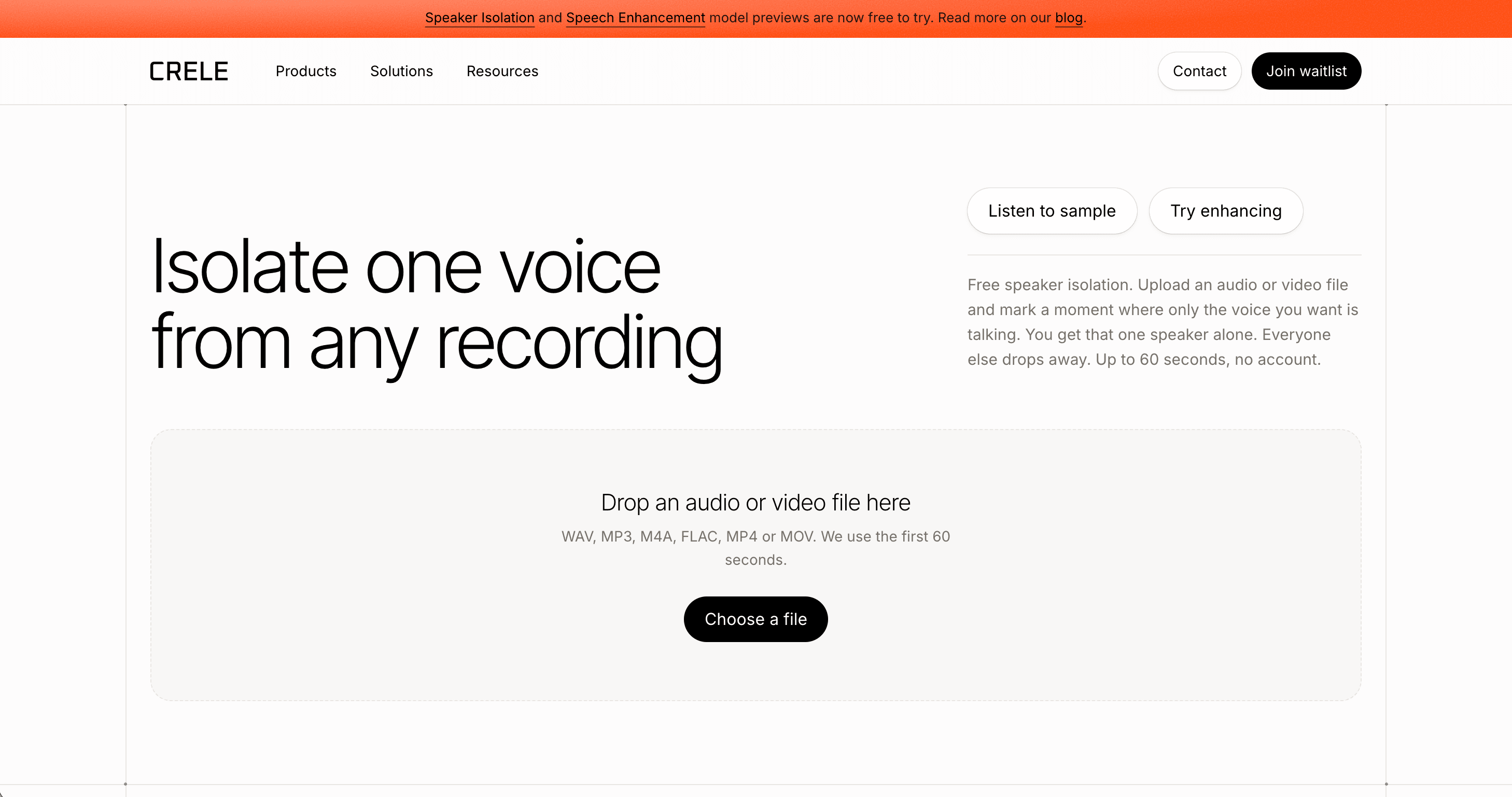
1Upload the video
Drop the file on the Isolate a Speaker tool: MP4, MOV, WAV, MP3, M4A or FLAC, up to 200 MB. Only the audio track is sent, and the tool uses the first 45 seconds.
2Choose the voice to keep
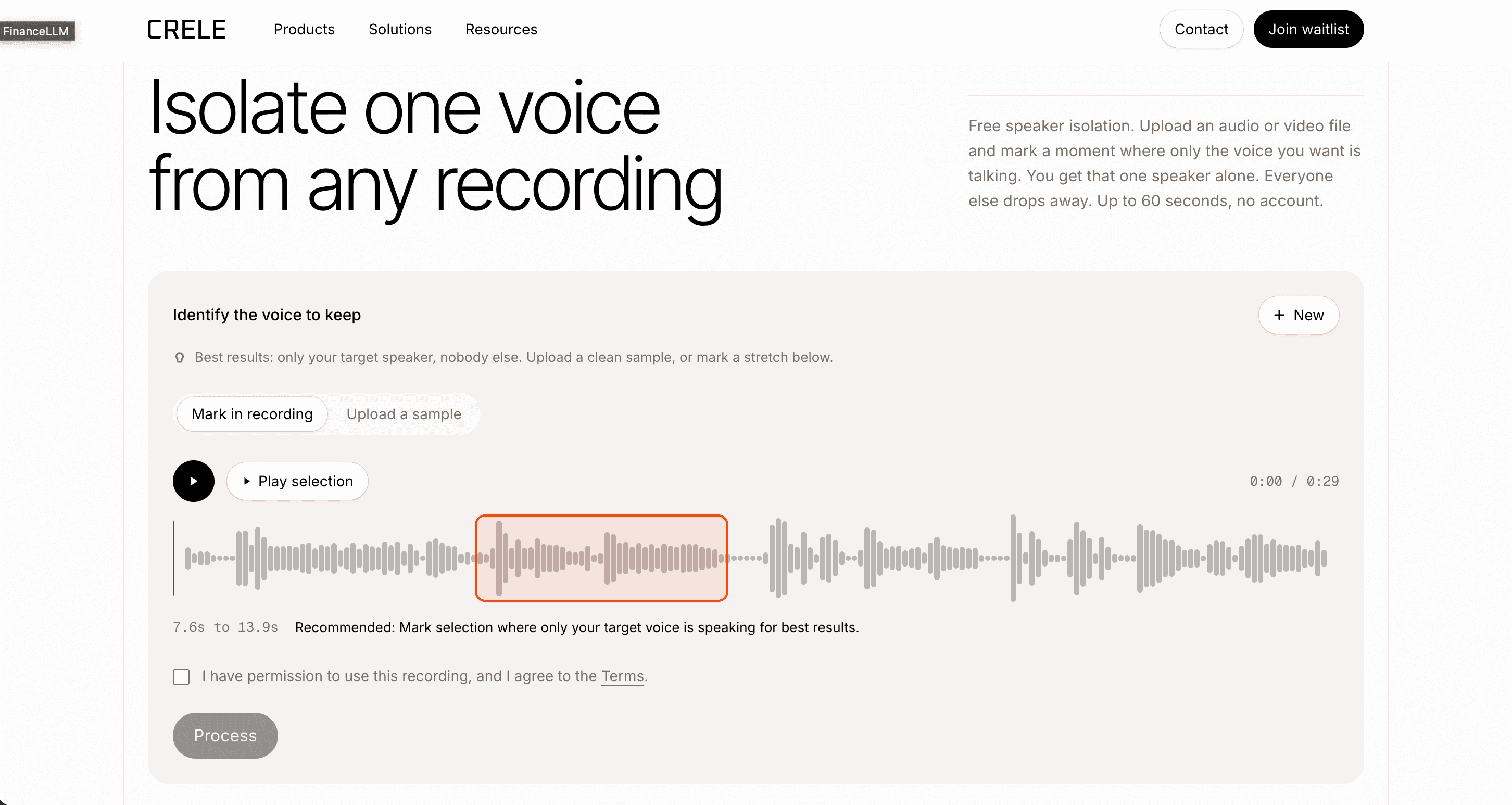
Mark a stretch of at least three seconds where only that person is talking, or upload a separate short clip of their voice. Clean beats long: if the other person's voice is inside your sample, the tool learns both and keeps both.
3Run it
Press Process. A run takes about as long as the clip itself, so under a minute for a full 45 seconds.
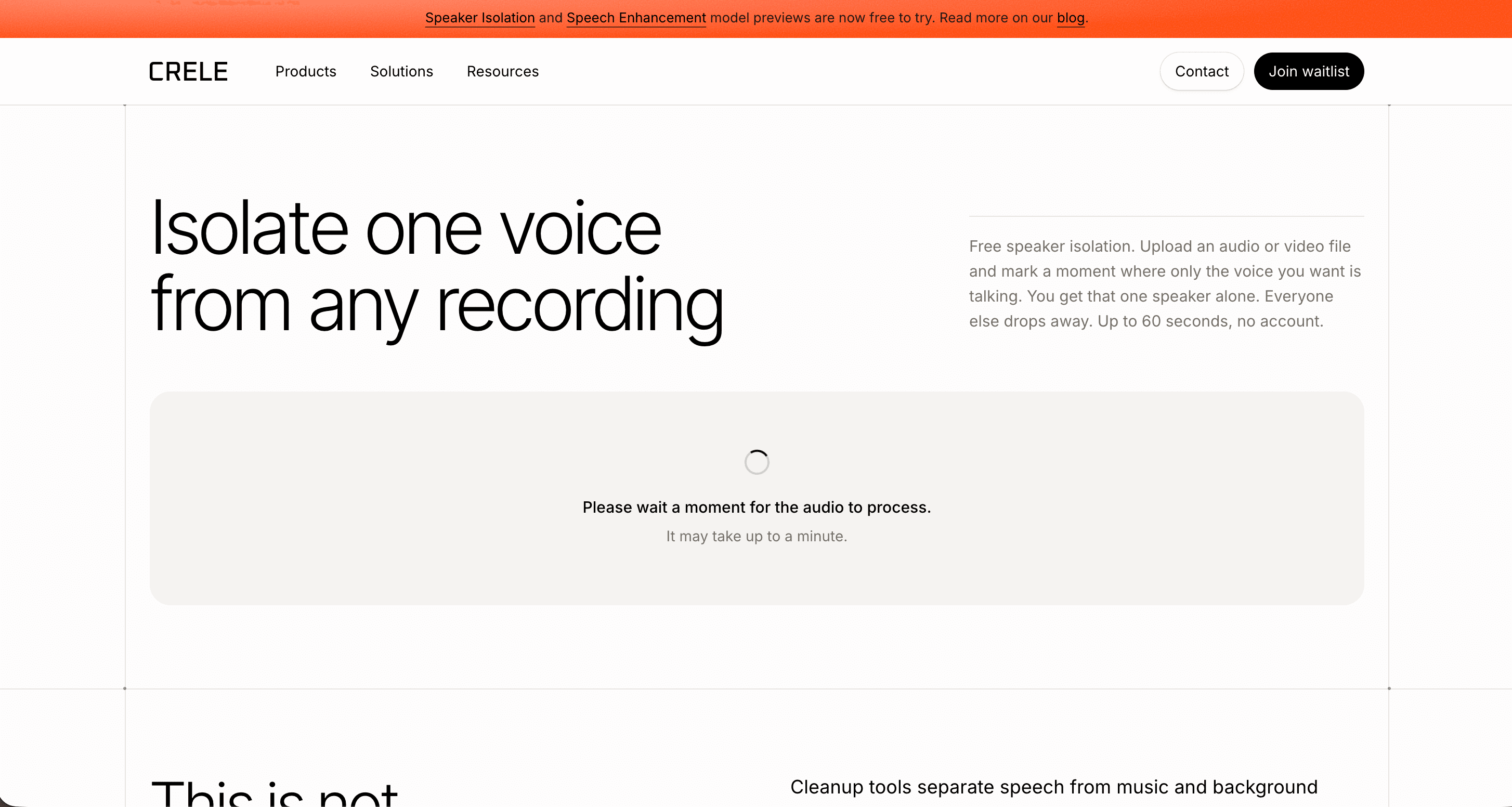
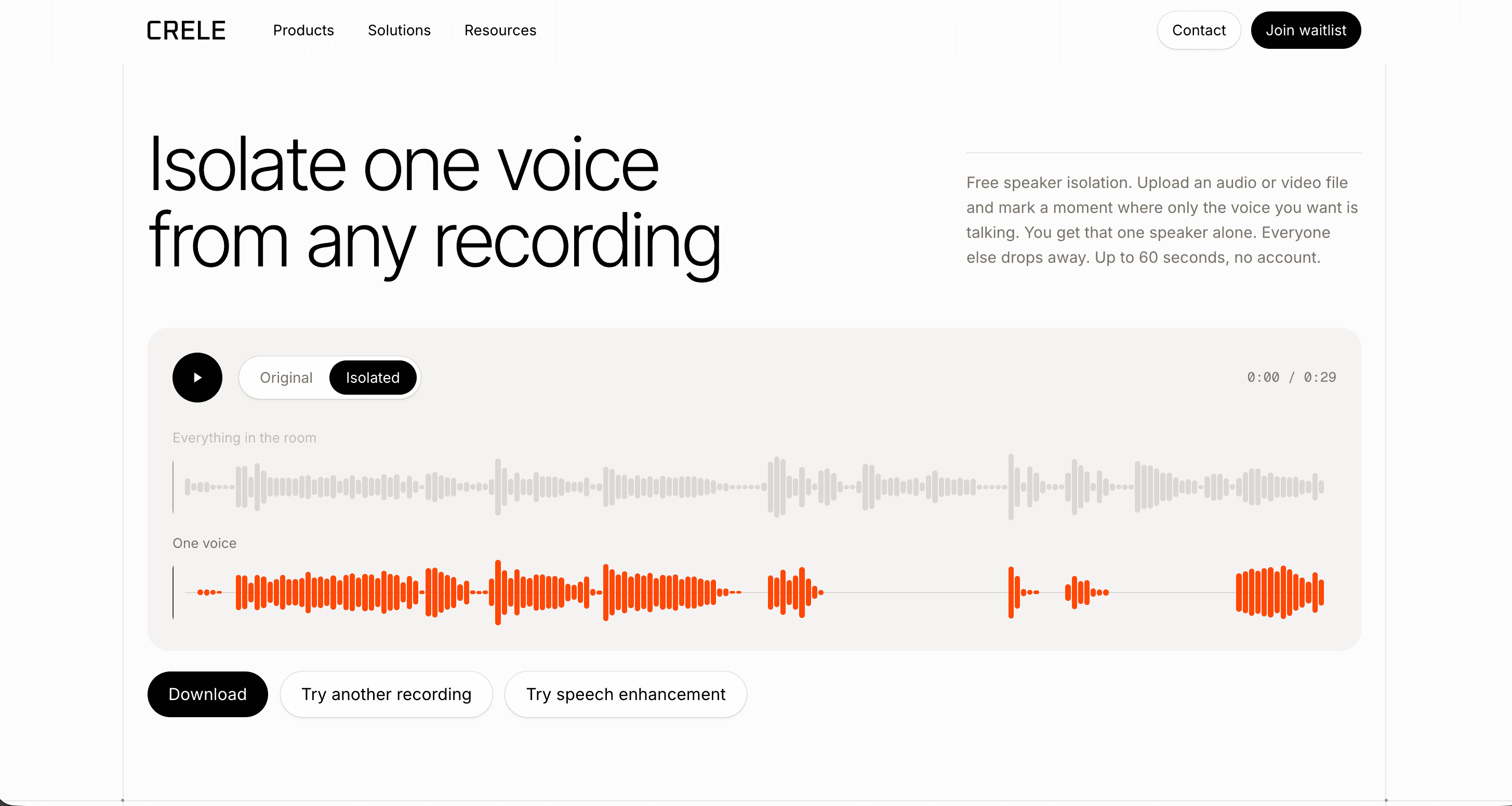
4Listen before and after in the browser
The result comes back beside the original. Switch between them while it plays.
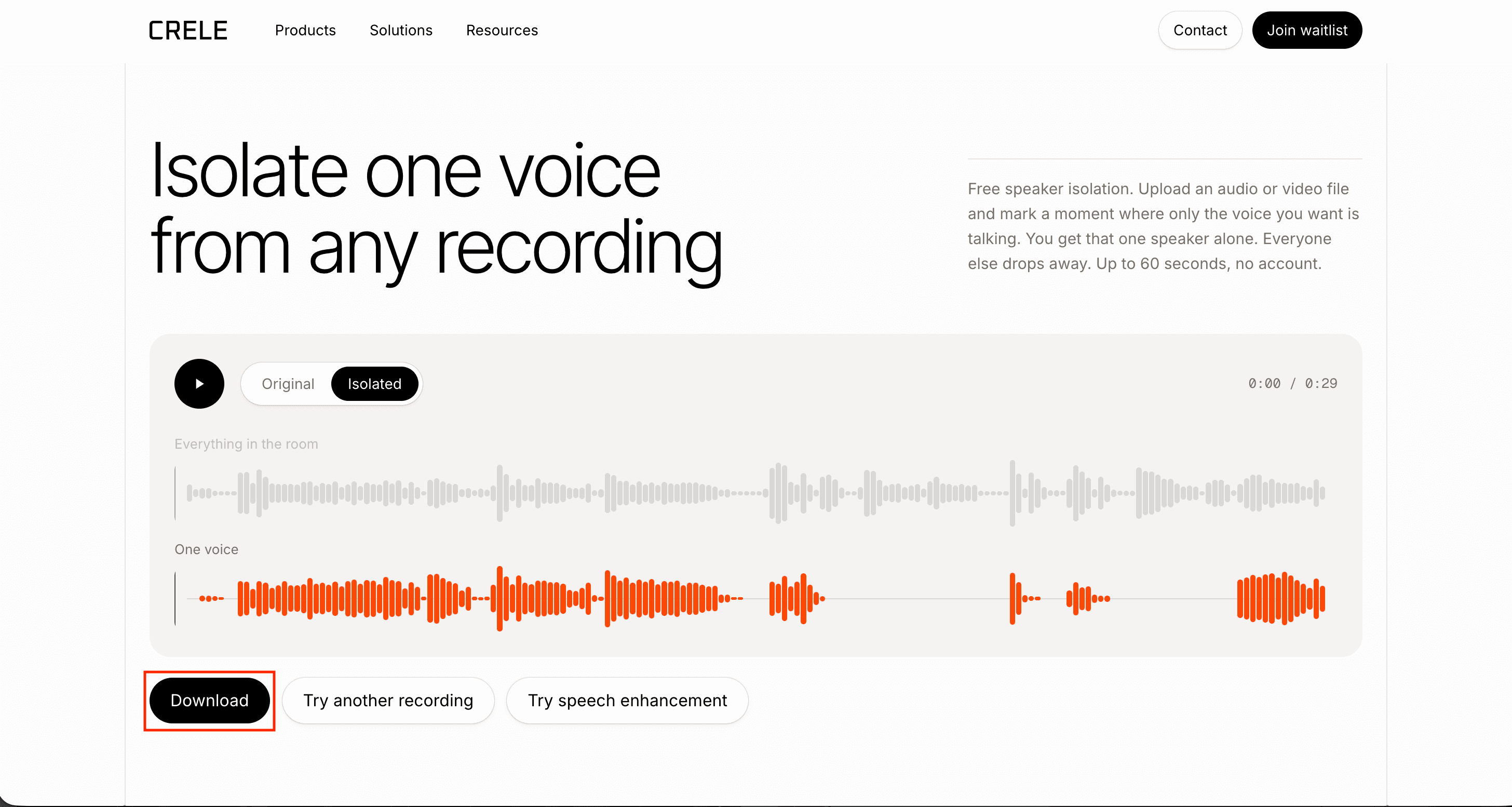
5Download the result
Download asks for a free account. Make one, run the file again in the app, and download the result there: one audio file with only the voice you kept.
6Drop it back into your editor
Put the new audio under the video in Premiere Pro, DaVinci Resolve, CapCut, iMovie or Final Cut, line it up with the original track, then mute or delete the original.
Before and after: an interview, a TV, and background talking
Two where it works, one where it only partly does. On each we marked a clean sample and nothing else.
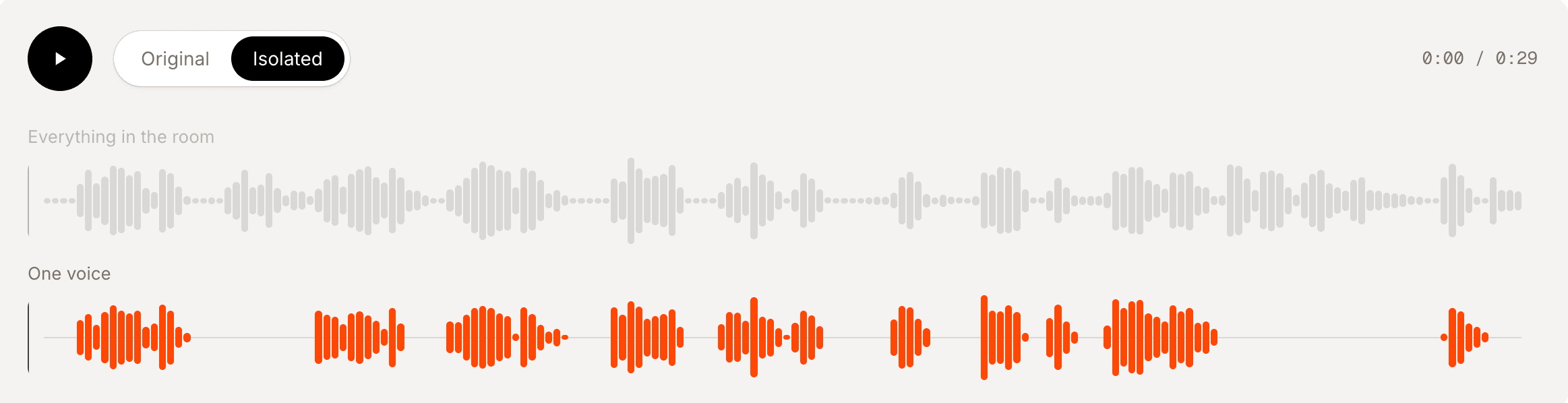
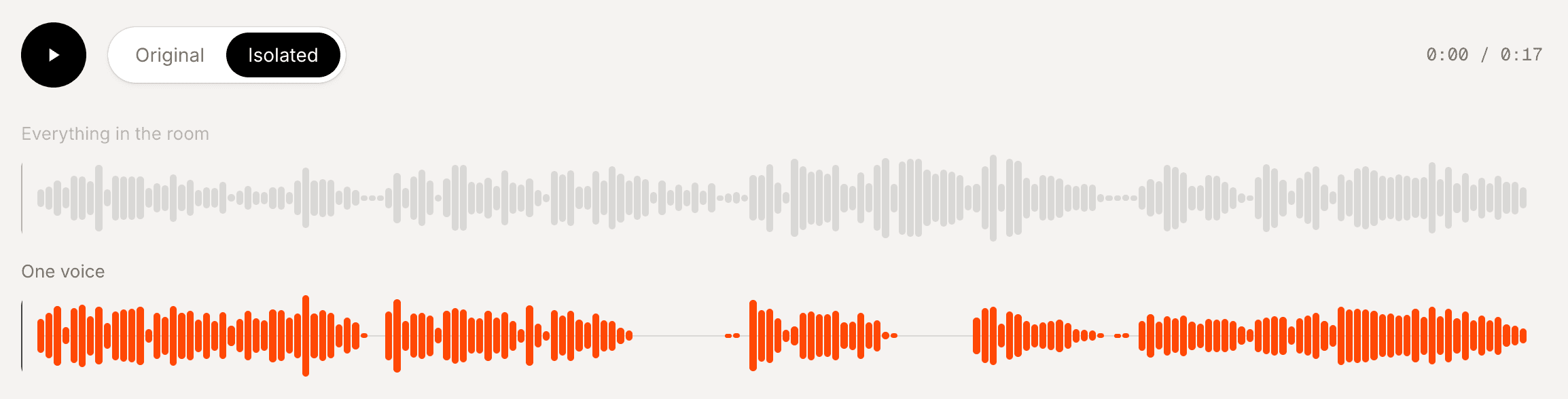
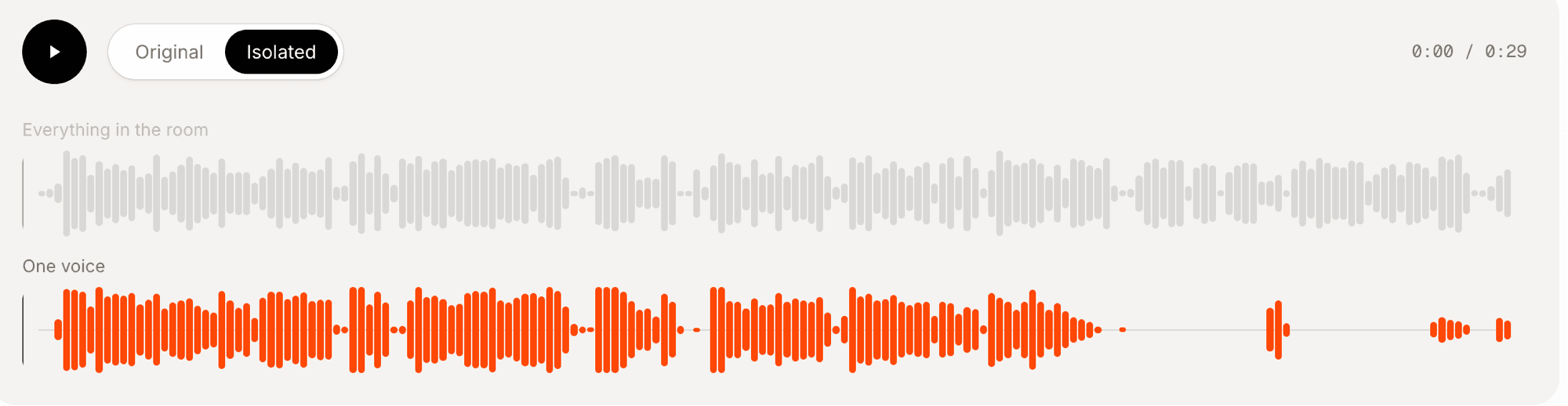
The third clip is the honest one. The tool has to find the voice you chose underneath the other one at every moment, and where they collide loudest a little of the other person survives. Easier to edit around than the original, but not clean.
When this won’t work (and what to try instead)
- Two people talking over each other for most of the clip. Expect traces of the other voice. If you already pay for Premiere Pro, its Separate Overlapping Speakers feature puts each speaker on their own track. Next time, record with one microphone per person.
- No clean stretch of the voice to keep. Upload a separate clip of that person from any other recording; a voice memo works. With no clip at all, there is nothing to learn from.
- Two voices that sound nearly identical. Give it the longest clean sample you can find. If the result still blurs them, cutting between turns by hand is the only route left.
- The voice you want to keep is far from the microphone. Isolation returns the voice as recorded, faint and roomy. Run the result through our free enhance tool next. If the voice is barely there, that is past what today’s models can recover.
FAQ
- Can Audacity remove a second voice?
- No. Noise Reduction subtracts a steady noise profile, and a voice is not steady, so both voices survive it. Vocal Reduction and Isolation is a stereo trick that treats everything in the centre the same, and two people on one microphone are both in the centre.
- Does Premiere Pro / DaVinci Resolve voice isolation remove other people?
- No. Both separate speech from background, and every voice counts as speech, so the other person stays. Premiere's paid Separate Overlapping Speakers feature is different: it puts each speaker on their own track, billed per second.
- Does Adobe Podcast Enhance remove other voices?
- No. It rebuilds the speech it hears and it hears every speaker, so both voices come back cleaner. Adobe describes it as built around a single speaker, and it does poorly on overlapping voices.
- Does ElevenLabs Voice Isolator remove a second speaker?
- No. It removes background noise and music from a recording and keeps all the speech, including the second speaker. It is a good choice when your problem is noise rather than a person.
- Can I remove my coworker's voice from a call recording?
- Yes, as long as there are a few seconds where the person you want to keep is talking alone. Mark that stretch, run it, and the coworker's side is removed along with the room.
- How do I isolate my own voice from a Zoom recording?
- Upload the recording and mark a few seconds where only you are speaking. Everyone else on the call is removed. If Zoom saved a separate audio file per participant, use yours instead.
- What if two people are talking at the same time?
- Occasional crosstalk is fine; the tool follows the voice you chose through it. When both people talk over each other for most of the clip, expect traces of the other voice, as in the hard case above.
- Is it free?
- Yes. Up to 45 seconds per file, no account and nothing to install. To download the result or run a longer file, make a free account.
- Will it change the voice I keep?
- It hands back the voice as it was recorded, same words, same speaker. The output is tuned for speech, so it can sound a little narrower than the original.
- Does it work on audio-only files?
- Yes. WAV, MP3, M4A and FLAC upload the same way as a video, and the result is the same one-voice audio file.
Keep the voice you want, drop the rest
No editor, no plugin. A few clean seconds of the right person is all it takes.
Related: about Crele and who wrote this · why noise removal can’t remove a second voice · how to separate two voices in Audacity or Premiere